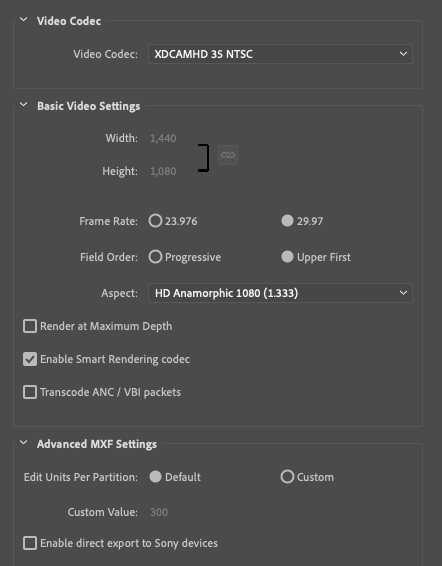
Download these 5 presets for FL Two presets h264 720 that keep review size & uploads small. With & without burn in.
The Xd-cam preset is half the size of our usual AVC-50 preset. More suited for slower home uploads. 4tracks, 24bit as usual. one 2 track XD-cam preset for trans coding zoom and a WAV preset to flip compressed audio files to 24bit WAV.
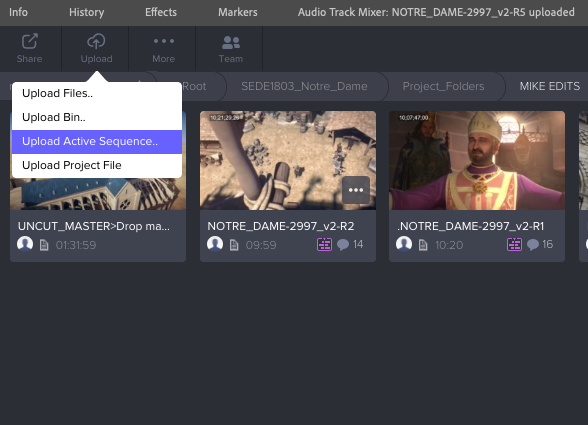
Sharing in 8 easy steps: As a Team member these are the steps to send out a review page: Step 1-4 one time only. 1. Download the Adobe preset that is optimized for review and compatible with slower home internet connections here 2. Quit Premiere, then install the Premiere extension. Open the Adobe Exchange page, sign into the same Adobe CC account that you’re using with Premiere Pro or After Effects, and then add the extension. 3. Start premiere, open a sequence and set an in out range of about a minute as a test. 4. Window>Extensions>Frame.io Log in. 5. Navigate to the folder where you want to upload your video. Click Upload Active Sequence in upper left.
upload
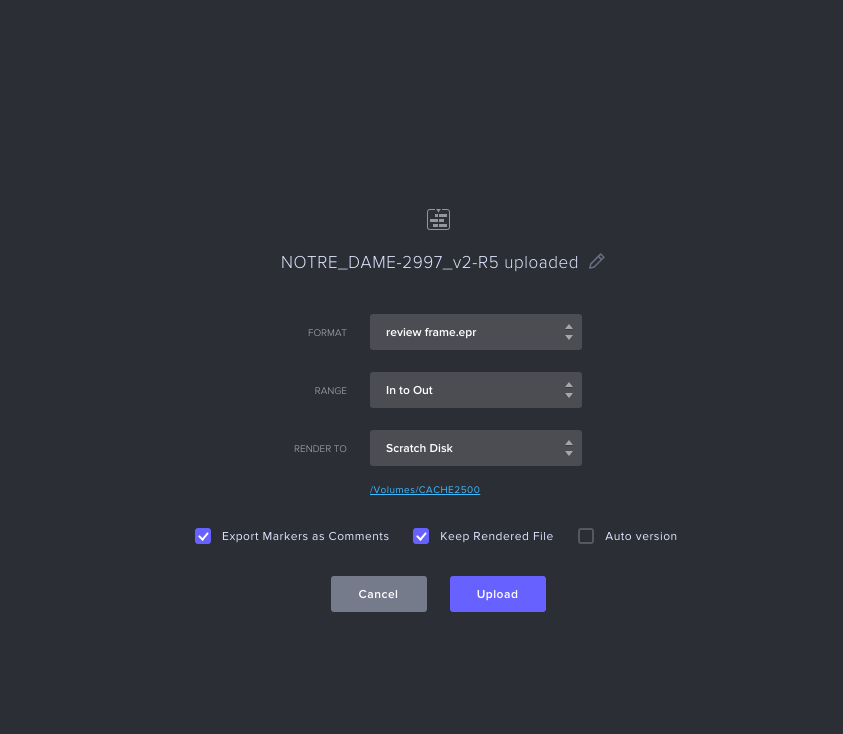
6. In the Format box scroll down and choose Select Preset file> select the file you downloaded in step 1. 7. Set range and scratch disk, Check Export Markers, Keep Rendered File. Uncheck Auto version. Hit upload. Media Encoder will open and export the file and upload it to the frame account. This is all in the Background .
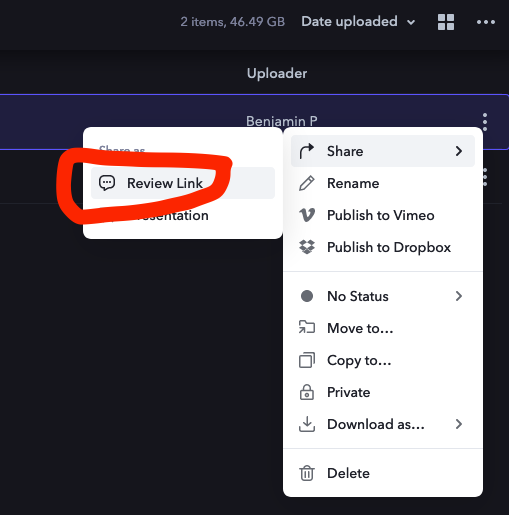
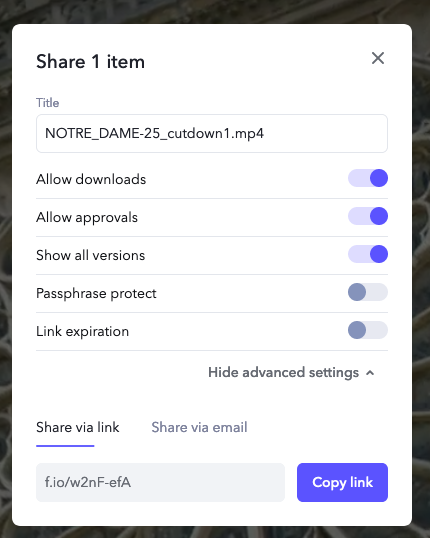
8. Wait until frame has created the Proxy then log into the browser version of your Team account>navigate to the video and click on the menu on the right.>Review link. -Click settings and turn downloads on.
Use these review settings
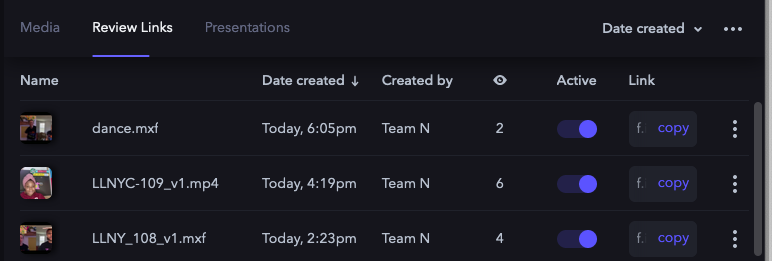
Copy the link and send in an email to client together with below screening tips. Tell them also that they have to enter their name and email the first time they receive a link. Review links are very cool because it allows you to spy on your clients and see how many views each link has.
You can manage reviews by clicking on Review links.
C: move cursor into the Comment box and pause the clip
I/O: In and Out points of a range-based comment
Tab: move cursor out of the Comment box
JKL shortcuts follow standard NLE behavior: J to rewind 2x,4x,8x K pause/play a video L fast forward 2x,4x,8x
Left/Right Arrows: move frame by frame while the clip is paused
There is a direct link between video quality/vide/audio stutters and bandwidth. The best choice is wired internet; a computer or laptop connected to the internet using an ethernet cable. If it’s not possible to connect wired: -Try bringing your computer or mobile device closer to the WiFi router or access point in your home or office. -Upgrade your WiFI router firmware. Check your WiFi router vendor support site for firmware upgrade availability. -Use a WiFi extender such as Amped Wireless or Linksys to increase the distance and strength of your WiFi signal -Use a DOCSIS 3.0 cable modem (if you have cable modem) to improve internet performance.